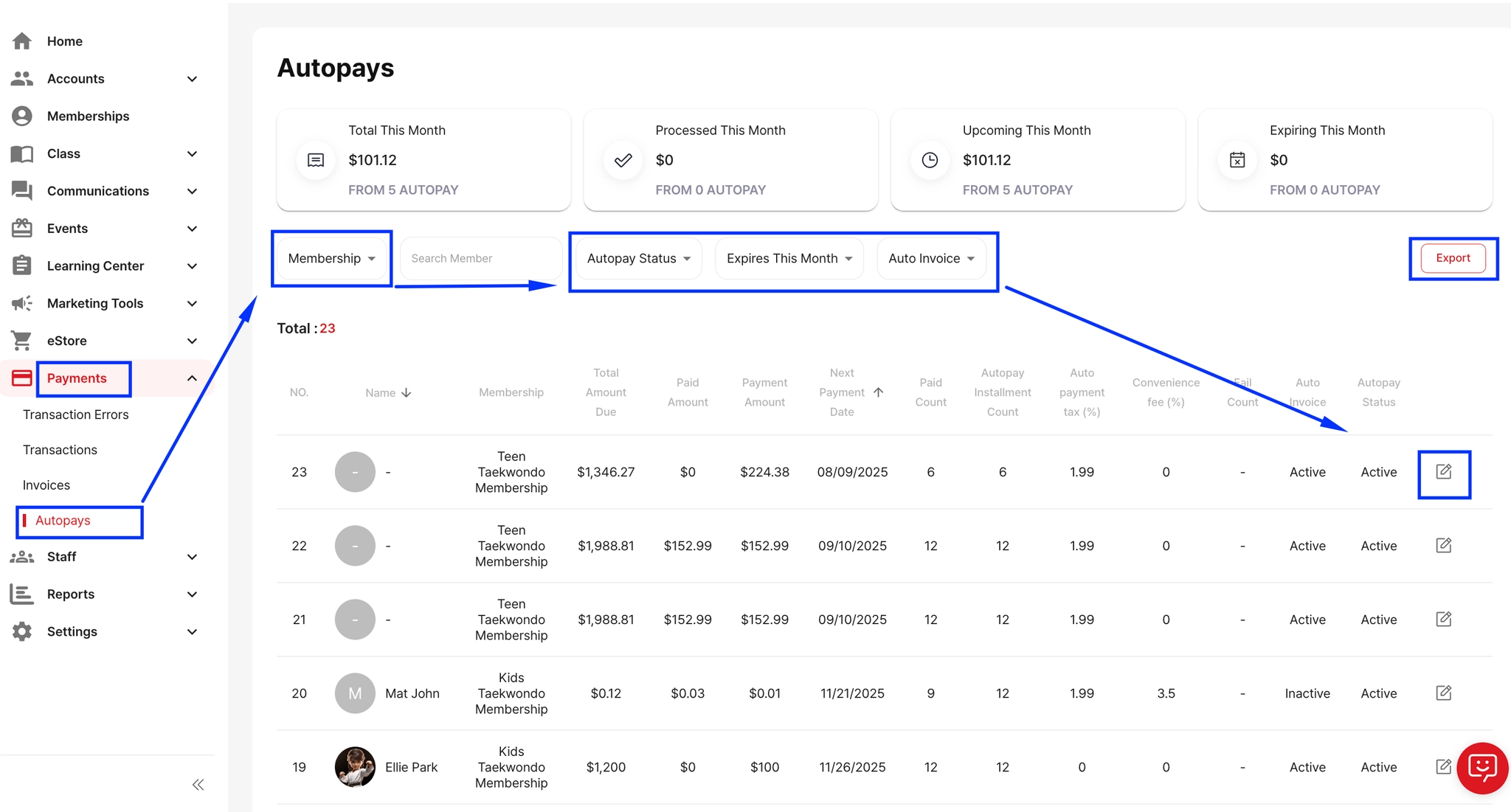
If your school takes a week off or you want to prevent weekly fees from being charged during certain dates, you can adjust the autopay date for any membership.
Here’s how to update it:
Go to Payments on the left menu.
Click Autopays.
Find the member in the list, then click the pencil icon on the right to open the edit window.
In the Autopay Update popup, click the calendar icon next to Autopay Date.
Select the new date you want the autopay to resume.
Click Autopay Update to save your changes.
Once updated, the system will not charge the weekly fee until the new autopay date arrives.